The zip file contains the Jupyter notebook and data files used in the course. Before you start running and modifying these code files, you need to set up the recommended python environment.
Why should we set up a Python environment?
There can be times when you could face incompatibility issues between the packages installed on your system and the packages recommended to run Jupyter notebook codes used in Quantra courses. To remove these incompatibility issues, you simply have to set up the Python environment by following the steps mentioned below.
We recommend using the Anaconda and Jupyter notebook for an optimum user experience.
Note that each step mentioned below is important to run the codes without any error. If you have already installed the correct version of Anaconda then you can directly go to the second step to set up the Python environment.
2. Set up the Python environment
Anaconda offers different installations on different architectures such as 32-bit and 64-bit. Therefore it is important to check the system configuration before installing Anaconda.
You can follow the links below for a step-by-step guide to download and install the correct version of Anaconda on your system. For any errors you might face, click on the third link for the troubleshooting guide.
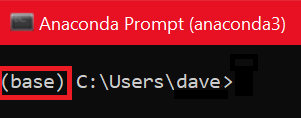
After installing Anaconda, when you open the Anaconda prompt, you will see "base" written on the left-hand side. That is the default environment.
However, we need a custom environment with a compatible python version and packages required for codes covered in the course. A detailed step-by-step guide can be found here.
What happens if you close everything and come back after two days, wanting to try another strategy from the Quantra course?
Remember that you should always open the Anaconda prompt or terminal and type the following command "conda activate <<name of your environment>>" to start the custom python environment suitable for Quantra codes. For example, if the name of your environment is quantra_py, then you can type "conda activate quantra_py".
Hurray! You have finished setting up your python environment. You can go through the document Folder Structure and How to Run Code Files.html for a guide on how to run the Jupyter notebook provided in this zip file.
If you face any issue while setting up the Python environment on your local computer then raise your query on Quantra Community.
© Copyright QuantInsti Quantitative Learning Private Limited